
Situation
Intel was introducing a new, very short-range but high-bandwidth wireless technology called “WiGig”. As part of an overall initiative called “No Wires,” this technology would eliminate the need for users to plug a portable PC into a docking station in order to use desktop I/O devices such as a monitor, keyboard, mouse, or wired network connection. Rather, the user would simply put their PC down on the desk and it would be wirelessly connected.
As a lead Interaction Designer in Intel’s Client Computing Group, I was asked to design the overall user experience for wireless docking.
Task
Our primary target users were enterprise and small-business knowledge workers, with an initial focus was on users who have an assigned desk or office that they use frequently; however, we also intended to support users at shared or public workspaces: “hoteling” desk setups in enterprises, or even hotel or airport business centers. Although the core interaction model appeared simple, we identified a number of design challenges, including how to determine when the user actually intended to dock their computer in a way that would not violate their expectations or privacy and later, how to integrate the experience with capabilities built into Windows 10.
Action
Intent to Dock
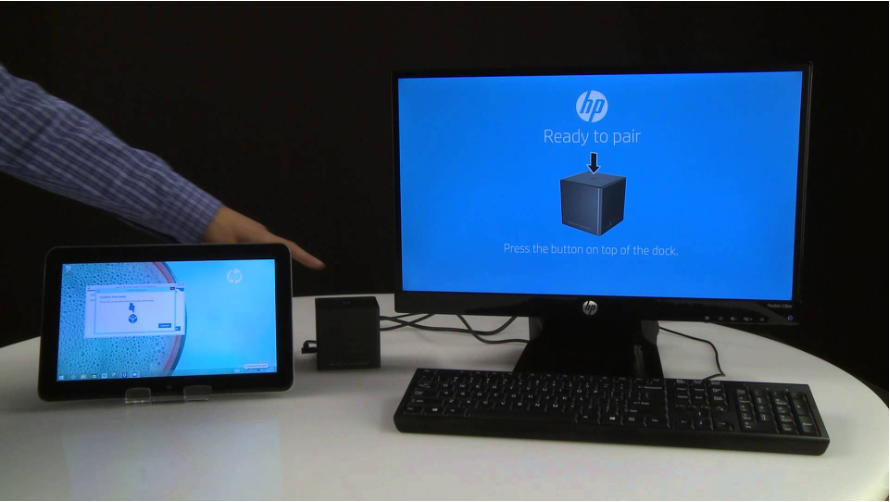
The engineering team originally designed two methods for initiating a connection between the PC and dock. For first-time use, the user would connect through “Dock Manager” software (similar to selecting a WiFi network); for subsequent use, the user would be automatically connected to that dock.
As we began to work with stakeholders, we discovered several concerns with this approach:
- Users expressed privacy concerns around the fact that whatever was displayed on their device screen could suddenly appear on a larger screen that might be in view of others without active intention on their part.
- Similarly, users were concerned that, if their device connected to the dock when they were working nearby but not at their desk, the switch between their device screen and monitor could be disruptive to their work.
- Finally, we realized that this approach would not work well for our secondary users/user needs – those users would be forced to select their dock through software each time they connected, which would actually be more involved than simply plugging in a wire or clicking into a dock.
To help alleviate the privacy and disruption concerns, we worked with the business and engineering teams to ensure that “autoconnect” would not be selected by default; instead, the user would need to take positive action to elect to enable it. (See flow below) We ensured, however, that the option to enable autoconnect would be highly visible. We also worked with the engineering team to be mindful about the range at which autoconnect should take place, ensuring that the dock would not “hijack” the user’s machine when they simply walked nearby rather than actually sitting down. For “hoteling” users, we continued to evaluate how a dock might allow automatic connection without this cumbersome initial connection step, including detection of when the device was placed in a stable position very close to the dock. While this work was incomplete when I left the project, we believed that this would be an effective direction to pursue.
Working with Microsoft
During the planning phase for Windows 10, we learned that Microsoft intended to fold wireless docking connections into the operating system, as they did for wireless display connections in Windows 8. We engaged with Microsoft to ensure that:
- Autoconnect would be readily available through the Windows connection UI, although not selected by default.
- If WiGig was disabled by default (as was required initially for system certification), the user would have a path to understand this and to enable it. We also worked to allow manufacturers to enable WiGig by default so that this step would be unnecessary.
- The user would have access to the dock management settings provided by the existing Intel dock manager application, though that app would no longer be used to enable connections.
Results
When Intel evaluated the usability of wireless docking along with other parts of the “No Wires” initiative, wireless docking achieved high usability scores compared to the other usages. Several OEMs released products that incorporated this experience, to very positive press reviews.
Ultimately, however, this technology faded in favor of “single-wire” docking solutions via USB-C/Thunderbolt that allowed similar bandwidth *and* power connections with far less complexity.
Visual Examples
Sample Deliverables

Connection Walkthrough


